How to Repurpose Long-Form Video Into Social Media Content (Step by Step)
A complete guide to turning webinars, podcasts, and long videos into short-form clips for Instagram Reels, TikTok, YouTube Shorts, and more — with practical workflows, tools, and examples.
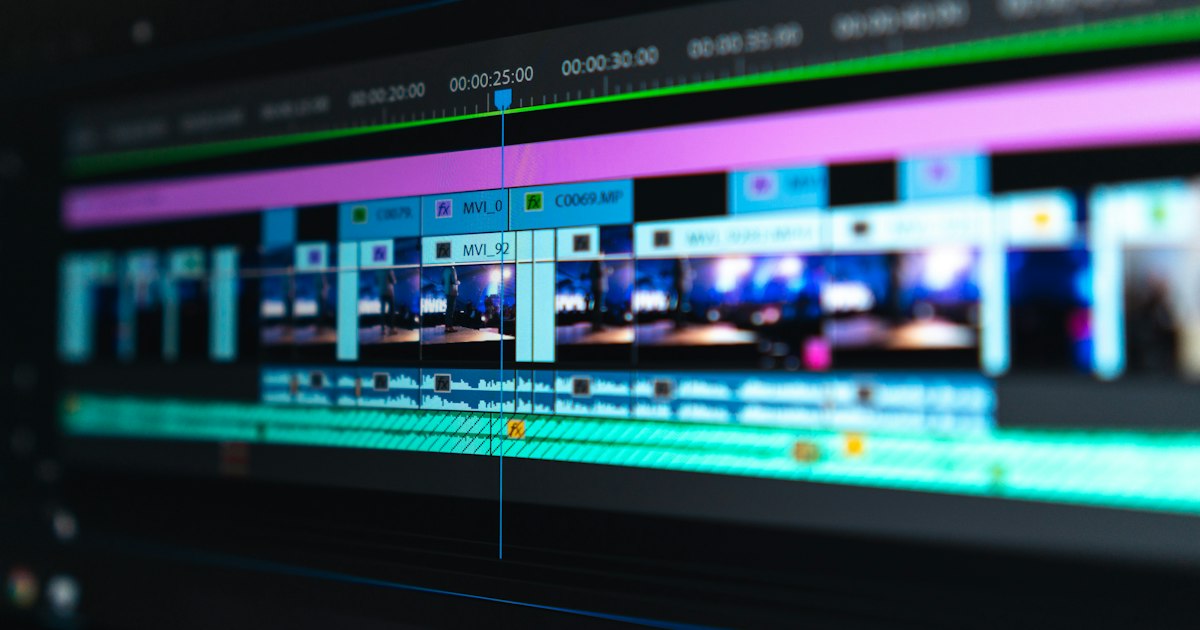
You recorded a 45-minute webinar last month. It took weeks to plan, promote, and deliver. Thirty-seven people attended live, maybe a hundred watched the replay, and now it sits in a Google Drive folder collecting dust. That webinar contains five, maybe eight pieces of content that could generate engagement for months across seven platforms — but turning a long video into short social clips feels like another full-time job.
It does not have to be. Video repurposing is the highest-leverage content activity a business can do in 2026. One long-form video can produce enough social content for an entire month, across every platform, with platform-specific formatting. This guide walks through exactly how to do it.
Why video repurposing is the best content strategy in 2026
Before we get into the how, here is why this matters more than ever:
The algorithm math
Short-form video gets 2-5x the organic reach of static image posts on every major platform. Instagram Reels reach 2x more non-followers than feed posts. TikTok's For You page exposes your content to people who have never heard of your brand. YouTube Shorts are YouTube's fastest-growing format with a dedicated shelf on the homepage.
But creating original short-form video from scratch — scripting, filming, editing — takes 2-4 hours per clip. If you need 8-12 video posts per month across platforms, that is 16-48 hours of production. Nobody has that kind of time.
The repurposing multiplier
A single 60-minute video contains 4-8 standalone clips. Each clip can be posted to 7+ platforms with platform-specific formatting. That is 28-56 pieces of content from one recording session.
Here is the math for a real example:
- Input: 55-minute nonprofit webinar
- Output: 5 vertical clips (30-90 seconds each)
- Platforms per clip: Instagram Reels, Facebook Reels, TikTok, YouTube Shorts, Twitter/X, Bluesky, LinkedIn
- Total placements: 35 pieces of content
- Production time for the original webinar: Already done
- Additional production time for clips: 3-5 hours (or zero if automated)
Compare that to creating 35 original posts from scratch. There is no contest.
What makes a good source video
Not every video is worth repurposing. The best source videos have:
- A speaker on camera — talking head content performs well in short-form because it feels personal and authentic
- Distinct segments — a webinar with 5-6 main topics naturally produces 5-6 clips
- Strong statements — moments where the speaker says something surprising, contrarian, or data-backed
- Complete ideas — each clip needs to stand alone without requiring context from the full video
- Reasonable audio quality — you can fix a lot in post-production, but if the speaker sounds like they are in a tunnel, the clip will not perform
Good source videos:
- Webinars and workshops
- Podcast recordings (especially video podcasts)
- Conference presentations
- Client interviews and testimonials
- Team presentations and town halls
- Product demos and walkthroughs
- Q&A sessions
Poor source videos:
- Screen shares with no speaker visible
- Videos with background music louder than speech
- Group conversations where audio overlaps
- Heavily scripted reads that sound robotic
Step 1: Transcribe the full video
Every repurposing workflow starts with transcription. You need a text version of the video with timestamps so you can identify the best moments without rewatching the entire thing.
What to look for in a transcription tool
- Word-level timestamps — not just paragraph timestamps. You need precision for caption timing.
- Speaker identification — if your video has multiple speakers, the transcription should label who is talking.
- High accuracy — AI transcription has improved dramatically, but technical jargon, brand names, and accents still trip up some tools. Review and correct the transcript.
Recommended tools
| Tool | Price | Best For |
|---|---|---|
| Descript | $24-$33/month | All-in-one editing + transcription |
| Otter.ai | Free-$20/month | Fast transcription with speaker labels |
| Riverside | $24-$39/month | Recording + transcription for podcasts |
| Rev | $1.50/minute (human) | Maximum accuracy for important content |
What to do with the transcript
Once you have the transcript, read through it and highlight moments that stand alone. Look for:
- Data points: "Our conversion rate went from 2% to 14% in three months"
- Strong opinions: "Most businesses waste 80% of their ad budget on the wrong keywords"
- Stories: "When we started working with this restaurant, they had 200 Instagram followers and zero online orders..."
- Actionable advice: "The first thing you should do tomorrow morning is check your Google Business Profile and make sure your hours are correct"
- Emotional moments: Passion, frustration, excitement — emotion performs well in short-form
- Counterintuitive insights: "The businesses that post three times a week outperform the ones that post every day"
Mark 5-10 potential clips. You will narrow these down in the next step.
Step 2: Select the best clips
Not every highlighted moment will make a good standalone clip. Apply these filters:
The 3-second hook test
Watch the first three seconds of the potential clip. Would you stop scrolling? If the clip starts with "um, so, like I was saying..." or "as I mentioned in the previous section..." — it fails. The opening needs to grab attention immediately.
Strong hooks:
- "Here is the number one mistake I see businesses make on social media"
- "We doubled our client's revenue in 90 days. Here is exactly how."
- "Stop posting at 9 AM. Here is why."
- A surprising statistic delivered with conviction
- A bold, slightly controversial statement
Weak hooks:
- Throat clearing, filler words, or "so..."
- References to earlier parts of the presentation
- Generic intros like "today we are going to talk about..."
- Starting mid-sentence
The standalone test
Play the clip to someone who did not watch the full video. Do they understand the point? Can they take away value without needing context? If the clip requires the previous five minutes to make sense, it is not standalone.
The platform test
Will this clip work on the platforms you are targeting? Consider:
- Length: Instagram Reels perform best at 30-60 seconds. TikTok allows up to 10 minutes but 30-90 seconds is the sweet spot. YouTube Shorts max at 60 seconds.
- Visual interest: Is the speaker animated? Are there visual elements (slides, products, demonstrations)?
- Audio: Will the message land with sound off? (Many people scroll without sound — captions solve this, but the visual still needs to be engaging.)
How many clips to select
From a 30-minute video, aim for 3-5 clips. From a 60-minute video, aim for 5-8 clips. From a 90-minute video, aim for 8-12 clips. Quality over quantity — five great clips outperform ten mediocre ones.
Step 3: Crop to vertical format
Most long-form video is recorded in landscape (16:9). Social media short-form is vertical (9:16). This is not just a crop — it is a reframing of the entire composition.
The problem with simple center-crop
If you take a 16:9 frame and crop to the center third, you might cut off the speaker's face, lose important visual elements, or create an awkwardly framed shot. A speaker standing slightly left of center in a wide shot will be completely off-frame in a naive center crop.
Smart cropping with face detection
The best approach uses face detection to track the speaker and keep them centered in the vertical frame throughout the clip. As the speaker moves, leans, or gestures, the crop follows them.
Tools for smart cropping:
| Tool | Price | How It Works |
|---|---|---|
| Descript | $24-$33/month | AI-powered reframing with face tracking |
| CapCut | Free | Auto-reframe feature for vertical crops |
| Opus Clip | $19-$99/month | AI clip extraction + vertical cropping |
| Premiere Pro | $22.99/month | Auto Reframe tool |
| DaVinci Resolve | Free | Smart Reframe in Studio version |
When to skip the crop
If your original video is already vertical (recorded on a phone, for example), skip this step. If the video is a screen share with a small speaker thumbnail, cropping to vertical may not work well — consider a different layout (speaker on top, screen content below, or vice versa).
Step 4: Add captions
This is non-negotiable. Captions are not optional for social media video in 2026.
Why captions matter
- 85% of Facebook video is watched without sound. The number is lower on TikTok (about 50%) but still significant.
- Captions increase watch time by 12% on average because they help viewers follow along even with sound on.
- Accessibility: Captions make your content available to deaf and hard-of-hearing viewers. This is not just good practice — it is a legal consideration for some businesses.
- Engagement: Word-by-word animated captions (where each word highlights as it is spoken) are now the standard for short-form video. They add visual energy and keep eyes on the screen.
Types of captions
Burned-in captions (hardcoded): The captions are permanently part of the video file. They appear the same on every platform, you control the exact styling, and they cannot be toggled off. This is the standard for social media short-form video.
Platform captions (soft subs): Uploaded separately or auto-generated by the platform. Can be toggled on/off by the viewer. Less reliable — each platform renders them differently, auto-generated captions contain errors, and you have limited styling control.
Recommendation: Use burned-in captions for all social media short-form video. This gives you control over the look and ensures your captions appear correctly everywhere.
Caption styling
- Font: Bold, sans-serif fonts (Montserrat, Poppins, Impact) that are readable at small sizes
- Size: Large enough to read on a phone screen without squinting — this is bigger than you think
- Position: Lower third of the frame, but not so low that platform UI elements (like TikTok's action buttons) cover them
- Color: White with a dark outline or shadow, or brand colors if they have enough contrast
- Animation: Word-by-word highlighting is the current standard. Each word lights up as it is spoken, creating a karaoke-style effect that keeps viewers engaged.
- Brand consistency: Use the same caption style across all your clips. This becomes part of your visual identity.
Caption tools
| Tool | Price | Quality |
|---|---|---|
| CapCut | Free | Good auto-captions with word-by-word animation |
| Descript | $24-$33/month | Excellent accuracy, multiple styles |
| Captions app | Free-$10/month | Specialized in caption generation |
| Premiere Pro + SRT | $22.99/month | Full control but manual |
| Submagic | $27-$83/month | AI-powered, optimized for social media |
Step 5: Add a title overlay and hook text
The title overlay is the text that appears in the first 1-3 seconds of the video. Its job is to make the viewer stop scrolling. Think of it as the headline of your video.
What makes a good title overlay
- Curiosity gap: "The marketing trick that 90% of businesses miss"
- Specific number: "3 ways to double your Instagram engagement"
- Direct address: "If you own a restaurant, watch this"
- Contrarian take: "Stop posting every day on social media"
- Result: "How we got 50K views on a $0 budget"
Design principles
- Place the title in the top third of the frame (it should not compete with captions in the lower third)
- Use 3-7 words maximum — it needs to be readable in under two seconds
- High contrast against the video background
- Match your brand fonts and colors
- Animate it in (fade, slide, pop) — static text is less engaging
Step 6: Add background music
Background music makes a bigger difference than most people expect. It sets the emotional tone, fills audio gaps, and makes the content feel polished rather than raw.
Guidelines for music selection
- Volume: 10-20% of the speech volume. Music should be felt, not heard over the speaker.
- Genre: Match the topic. Business/educational content works with ambient, lo-fi, or light corporate. Energetic topics can use upbeat tracks. Emotional stories work with piano or strings.
- Licensing: Only use royalty-free music or music you have commercial rights to. Platform music libraries (TikTok sounds, Instagram audio) are great for organic posts but cannot be used in ads.
- Consistency: Use the same music style across your clips to create a recognizable audio brand.
Where to find royalty-free music
| Source | Price | Library Size |
|---|---|---|
| Epidemic Sound | $15-$49/month | 40,000+ tracks |
| Artlist | $14.99/month | 30,000+ tracks |
| YouTube Audio Library | Free | 1,000+ tracks |
| Uppbeat | Free-$8.25/month | 10,000+ tracks |
| Pixabay Music | Free | 5,000+ tracks |
Step 7: Format for each platform
This is where most people fail. They create one clip and post the same file to every platform. Each platform has different requirements, and meeting those requirements is the difference between 500 views and 50,000 views.
Platform specifications
| Platform | Max Length | Aspect Ratio | Caption | Unique Requirements |
|---|---|---|---|---|
| Instagram Reels | 90 seconds | 9:16 | Long (2,200 chars) | Cover image selection, hashtags in caption |
| TikTok | 10 minutes | 9:16 | Long | Trending sounds boost reach, auto-music for images |
| YouTube Shorts | 60 seconds | 9:16 | Long (5,000 chars) | Needs title + tags + category separate from caption |
| Facebook Reels | 90 seconds | 9:16 | Long | Video title field (separate from caption) |
| 10 minutes | 9:16 or 16:9 | Long | Native upload preferred over links | |
| Twitter/X | 2:20 | 9:16 or 16:9 | Short (280 chars) | Short, punchy caption with hook |
| Bluesky | N/A | 9:16 or 16:9 | Short | Similar to Twitter/X approach |
What to adapt per platform
Captions: Write two versions — a long story-driven caption (500-1,000+ characters) for Instagram, Facebook, LinkedIn, and YouTube, and a short punchy caption (under 280 characters) for Twitter/X and Bluesky. These should not be truncated versions of each other. Write each one purpose-built for the platform.
Hashtags: Instagram still benefits from 5-10 relevant hashtags. LinkedIn uses 3-5. TikTok uses 3-5 trending tags. Twitter/X uses 1-2 at most. YouTube uses tags in a separate field (no hashtags in the caption).
Thumbnail/cover: Instagram lets you select a cover frame. YouTube Shorts auto-selects but you can choose. Make sure your cover frame shows the title overlay or an engaging expression — not a blurry mid-word screenshot.
Step 8: Schedule and distribute
With clips created and formatted, schedule them across platforms with appropriate spacing.
Posting cadence
Do not post all clips from one video on the same day. Spread them out:
- Week 1: Clips 1-2 across all platforms
- Week 2: Clips 3-4 across all platforms
- Week 3: Clip 5 across all platforms + re-share clip 1 (if it performed well)
This gives you 2-3 weeks of video content from a single source video.
Best posting times for short-form video
- Instagram Reels: Tuesday-Thursday, 9-11 AM or 7-9 PM
- TikTok: Tuesday-Thursday, 10 AM-12 PM or 7-9 PM
- YouTube Shorts: Wednesday-Friday, 12-3 PM
- LinkedIn: Tuesday-Thursday, 8-10 AM
These are starting points. Your analytics will tell you when your specific audience is most active.
Evergreen recycling
Your best-performing clips should not be one-and-done. Social media algorithms only show each post to a fraction of your followers. A clip that performed well three months ago can perform well again if reshared. Build a library of your top clips and rotate them on a continuous cycle.
The complete workflow (summary)
Here is the entire process from recording to published clips:
- Record the long-form video (webinar, podcast, presentation)
- Transcribe the full video with word-level timestamps
- Select the 4-8 best standalone moments
- Crop from 16:9 to 9:16 using face-tracking smart crop
- Add captions — burned-in, word-by-word animation, brand colors
- Add title overlay — attention-grabbing text in the first 2 seconds
- Add background music — royalty-free, 10-20% volume
- Write platform-specific captions — long version + short version
- Export in the right format for each platform
- Schedule across platforms with staggered timing
- Recycle top performers on a continuous rotation
Time estimate (manual workflow)
| Step | Time |
|---|---|
| Transcription | 10-15 minutes (automated) |
| Clip selection | 30-60 minutes |
| Cropping | 15-30 minutes per clip |
| Captions | 10-20 minutes per clip |
| Title overlay + music | 10-15 minutes per clip |
| Caption writing (all platforms) | 20-30 minutes per clip |
| Scheduling | 30-60 minutes total |
| Total for 5 clips | 5-8 hours |
That is 5-8 hours to produce 35+ pieces of content (5 clips x 7 platforms). Compare that to creating 35 original posts from scratch — which would take 35-70+ hours.
Time estimate (automated workflow)
With an automated platform that handles transcription, clip extraction, cropping, captions, titles, music, and scheduling:
| Step | Time |
|---|---|
| Upload video | 5 minutes |
| Review and approve clips | 15-30 minutes |
| Total | 20-35 minutes |
Same 35+ pieces of content. The automation handles everything from transcription to platform-specific formatting. You review and approve.
Common mistakes to avoid
Mistake 1: Clips that start weak. If your clip does not grab attention in the first 2 seconds, viewers scroll past. Trim any throat-clearing, filler, or context-setting from the beginning. Start with the strongest moment.
Mistake 2: Clips that are too long. For social media, shorter is almost always better. A tight 30-second clip with one clear takeaway outperforms a rambling 90-second clip. When in doubt, cut it shorter.
Mistake 3: No captions. We covered this already, but it bears repeating. No captions means you lose 50-85% of potential viewers immediately.
Mistake 4: Same content everywhere. Posting the identical file with the identical caption to every platform is a wasted opportunity. Each platform's audience has different expectations. Adapt your captions and hashtags at minimum.
Mistake 5: One-and-done distribution. A clip that gets 500 views on day one might get 5,000 views if reshared two months later to an audience that never saw it the first time. Build evergreen recycling into your workflow.
Mistake 6: Ignoring analytics. After your first batch of clips, check which ones performed best. What did they have in common? Strong hooks? Controversial takes? Data-driven insights? Do more of what works and less of what does not.
What to do next
If you have a webinar, podcast episode, or any video longer than 10 minutes sitting in a folder somewhere, you have a month of social media content waiting to be extracted. Start with your best-performing or most recent recording, follow the steps above, and see how the clips perform.
The businesses that win on social media in 2026 are not the ones creating the most original content — they are the ones getting the most mileage out of every piece of content they already have.
More Social Media resources
View all resources
How Much Does Social Media Management Cost in 2026? A Realistic Breakdown
A detailed breakdown of social media management pricing in 2026 — freelancers, agencies, in-house teams, and subscription platforms compared with real numbers and what you actually get.

How to Build a Brand Community on Social Media That Drives Real Loyalty
A strategic guide to building an engaged community around your brand on social media that goes beyond vanity metrics.

Short-Form Video Marketing: How to Create Content That Gets Seen
A practical guide to creating effective short-form video content for TikTok, Instagram Reels, and YouTube Shorts.
Grow your business with Social Media
Ready to put these social media strategies into action? Let Fieldgates handle it for you.