Website Speed Optimization: Why Your Site Is Slow and How to Fix It
A practical guide to diagnosing and fixing website performance issues that hurt your search rankings and conversion rates.
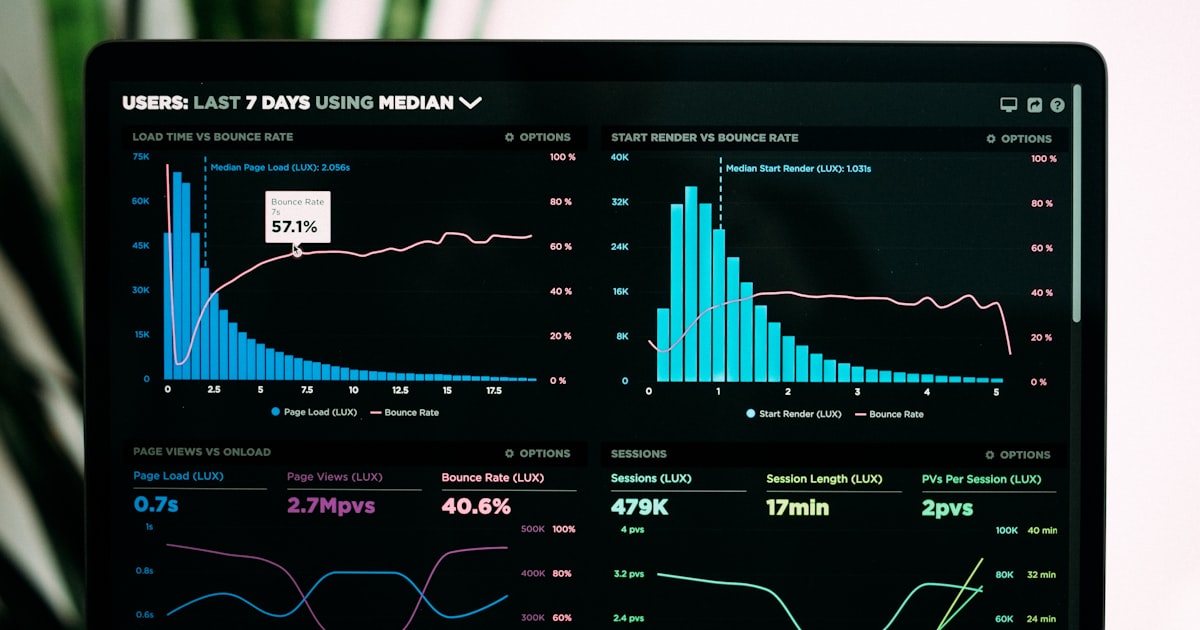
A slow website is not just an inconvenience — it is a liability. Every second of delay costs you visitors, rankings, and revenue. Studies consistently show that a one-second increase in page load time can reduce conversions by 7% or more. If your website takes longer than three seconds to load, you are losing nearly half of your potential visitors before they even see your content.
This guide walks you through diagnosing why your site is slow, understanding the metrics that matter, and implementing fixes that deliver measurable improvements.
Why Website Speed Matters More Than Ever
The SEO Impact
Google has used page speed as a ranking factor since 2010, but the introduction of Core Web Vitals in 2021 elevated performance from a tiebreaker to a significant ranking signal. Search engines prioritize fast-loading pages because they deliver better user experiences. If your competitors load faster, they have a tangible advantage in organic search results.
The Conversion Impact
Speed directly affects your bottom line. Research from Google and Deloitte has demonstrated that:
- Pages loading within 2 seconds have an average bounce rate of 9%, while pages taking 5 seconds see bounce rates above 38%.
- Mobile users are even less patient. Over 53% of mobile visitors abandon a site that takes more than 3 seconds to load.
- Faster sites see higher average order values, longer session durations, and more pages viewed per visit.
The User Experience Impact
Slow pages create friction at every step. Forms feel unresponsive. Images pop in and shift content around. Menus lag behind clicks. These micro-frustrations compound, eroding trust and making visitors less likely to return or recommend your business.
How to Test Your Site Speed
Before you fix anything, you need to measure. Here are the tools that matter.
Google PageSpeed Insights
The most accessible starting point. Enter your URL and receive scores for both mobile and desktop, along with specific recommendations. Pay close attention to the Core Web Vitals section, which reflects real user data when available.
Google Lighthouse
Built into Chrome DevTools, Lighthouse provides a more detailed audit. Open DevTools, navigate to the Lighthouse tab, and run a report. It breaks down performance into actionable categories and estimates the time savings of each fix.
WebPageTest
For deeper analysis, WebPageTest lets you test from different locations and connection speeds. The waterfall chart is particularly valuable — it shows exactly when each resource loads and where bottlenecks occur.
GTmetrix
GTmetrix combines Lighthouse data with its own performance analysis. The history feature is useful for tracking improvements over time after you implement changes.
Common Causes of Slow Websites
Unoptimized Images
Images are the single most common performance problem. A single unoptimized photograph can be 5MB or more — larger than the rest of your page combined.
How to fix it:
- Serve images in modern formats like WebP or AVIF, which are 25-50% smaller than JPEG at equivalent quality.
- Resize images to the dimensions they are actually displayed at. A 4000px-wide image displayed at 800px is wasting bandwidth.
- Implement lazy loading so images below the fold only load when the user scrolls near them.
- Use responsive images with
srcsetto serve different sizes based on the viewer's screen.
Too Many Third-Party Scripts
Analytics, chat widgets, social media embeds, ad trackers, heat mapping tools — each one adds HTTP requests, JavaScript execution time, and often blocks rendering. A typical business website can have 15-30 third-party scripts running without anyone realizing it.
How to fix it:
- Audit your scripts. Remove anything you are not actively using or reviewing.
- Load non-critical scripts asynchronously or defer them until after the page renders.
- Consider server-side alternatives for analytics where possible.
- Use a tag manager to control when and how scripts execute.
Poor Hosting and Infrastructure
Cheap shared hosting can bottleneck your site regardless of how well it is optimized. If your server takes 800ms to respond before it even starts sending content, no front-end optimization will make your site feel fast.
How to fix it:
- Upgrade to managed hosting or a VPS with adequate resources for your traffic.
- Use a Content Delivery Network (CDN) to serve static assets from locations close to your visitors.
- Enable server-level caching so your CMS does not rebuild pages from scratch on every request.
- Consider static site generation for content that does not change frequently.
Render-Blocking CSS and JavaScript
When a browser encounters CSS or JavaScript in your HTML, it often has to stop rendering the page until those files are downloaded and processed. If you have large CSS files and multiple JavaScript bundles in your document head, the browser is forced to wait.
How to fix it:
- Inline critical CSS — the styles needed for above-the-fold content — directly in the HTML.
- Defer non-critical CSS and load it asynchronously.
- Add
deferorasyncattributes to JavaScript files that do not need to run immediately. - Minimize and bundle your CSS and JavaScript to reduce file sizes.
Web Fonts
Custom fonts add visual polish but can significantly delay text rendering. If font files are large or loaded from external servers, visitors may see a flash of invisible text (FOIT) or a flash of unstyled text (FOUT).
How to fix it:
- Self-host your fonts instead of loading them from external CDNs. This reduces DNS lookups and gives you more control.
- Use
font-display: swapto show fallback text while custom fonts load. - Subset your fonts to include only the characters you actually use.
- Limit the number of font weights and styles. Each variant is a separate file.
Core Web Vitals Explained
Core Web Vitals are Google's specific metrics for measuring user experience. They focus on three aspects of page performance.
Largest Contentful Paint (LCP)
LCP measures how long it takes for the largest visible element — usually a hero image or heading — to fully render. A good LCP is 2.5 seconds or less.
Common LCP problems: Slow server response, render-blocking resources, unoptimized hero images, lazy-loaded above-the-fold content.
Interaction to Next Paint (INP)
INP replaced First Input Delay in 2024 and measures how quickly your page responds to user interactions throughout the entire visit. A good INP is 200 milliseconds or less.
Common INP problems: Heavy JavaScript execution, long tasks blocking the main thread, complex DOM structures, inefficient event handlers.
Cumulative Layout Shift (CLS)
CLS measures visual stability — how much the page layout shifts while loading. A good CLS score is 0.1 or less.
Common CLS problems: Images without dimensions, dynamically injected content, web fonts causing text reflow, ads or embeds loading late and pushing content around.
Quick Wins vs. Deep Fixes
Not every optimization requires a complete rebuild. Start with the changes that deliver the most impact for the least effort.
Quick Wins (Implement This Week)
- Compress and resize all images. This alone can cut page weight by 50% or more.
- Enable browser caching headers so returning visitors load cached assets.
- Remove unused plugins, scripts, and stylesheets.
- Add width and height attributes to all images and embeds to prevent layout shifts.
- Enable GZIP or Brotli compression on your server.
Medium Effort (Plan for This Month)
- Implement lazy loading for images and videos below the fold.
- Defer non-critical JavaScript and CSS.
- Self-host fonts and optimize font loading.
- Set up a CDN for static asset delivery.
- Audit and reduce third-party scripts.
Deep Fixes (Strategic Projects)
- Migrate to better hosting infrastructure.
- Rebuild with a performance-first framework or static site generator.
- Implement server-side rendering or incremental static regeneration.
- Redesign heavy page templates to reduce DOM complexity.
- Build a performance budget and integrate testing into your deployment process.
Ongoing Monitoring
Speed optimization is not a one-time project. Sites degrade over time as content is added, plugins are installed, and third-party scripts are updated.
Set up automated monitoring using Google Search Console (which reports Core Web Vitals from real users), a scheduled Lighthouse CI check in your deployment pipeline, or a service like SpeedCurve or Calibre for continuous tracking.
Review performance metrics monthly. Set thresholds that trigger alerts when key pages slow down beyond acceptable limits. Make speed a part of your content publishing workflow — every new image, embed, or script should be evaluated for its performance impact before it goes live.
A fast website is not a luxury. It is foundational to everything else you do online — from SEO to advertising to customer experience. Start with the quick wins, build toward the deeper fixes, and keep measuring along the way.
More Web Design resources
View all resources
7 UX Design Principles That Turn Visitors Into Customers
The essential user experience design principles every business website needs to convert traffic into leads and sales.

Restaurant Website Design in Toronto: What Actually Converts in 2026
What Toronto restaurants need from their website to convert visitors into diners. Online ordering, reservations, mobile design, and common mistakes to avoid.

Small Business Website Checklist: 15 Must-Haves for 2026
The definitive small business website checklist for 2026 covering design, performance, SEO, security, and conversion essentials every site needs.
Grow your business with Web Design
Ready to put these web design strategies into action? Let Fieldgates handle it for you.